The assistive tools students need
Word, PDF readers and editors, text-to-speech and writing aids: choose a preset profile or select applications manually.
WordUsitoWordQLexibarAntidotePDF
 Proudly designed in Québec
Approved applications, a supervised environment, and control for your school team.
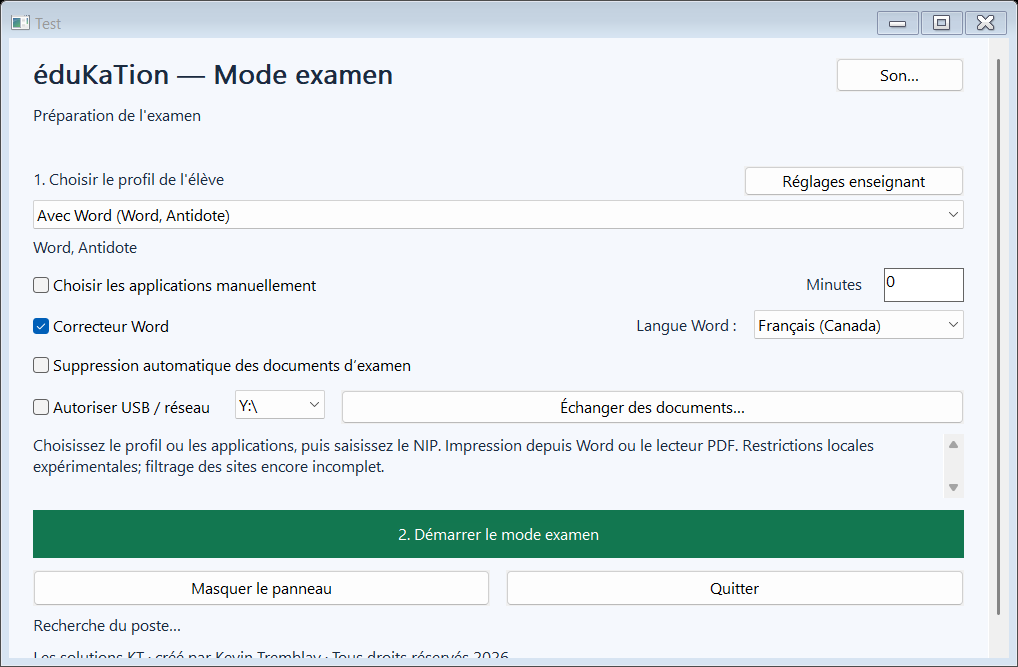
Students may have several applications on their computer. That does not mean every application should be available during their exam.
éduKaTion helps you select the tools in a student’s profile and keep the exam within a supervised Windows environment.
The right tool for each student, based on the exam rules and approved accommodations.
Students work with their applications. You choose what is permitted.
Word, PDF readers and editors, text-to-speech and writing aids: choose a preset profile or select applications manually.
Keep printing from permitted applications, reducing the need to move files around on USB drives.
A PIN protects teacher controls. The supervised pause supports an intervention followed by a return to the exam.
Select a profile or the permitted applications.
Students access their tools in exam mode.
Use audio controls and the invigilator’s commands.
Keep the documents or use the optional deletion setting.
One school or a group of schools: the same approach, adapted to your deployment.
Public or independent schools. A quote based on the computers to equip and your staff’s needs.
Request a quote →A proposal for multiple schools, with deployment coordinated with your IT team.
Request a quote →Planned purchasing process: quote, invoice, full payment, then activation. This preview does not publish prices or accept purchases.
 Proudly designed in Québec
A French teacher for nearly 15 years and an educational technology specialist, Kevin Tremblay is developing éduKaTion to address a practical challenge in schools.
His goal: make exams with assistive tools easier, without adding stress for students or complexity for school staff.
Creator of éduKaTion · Les solutions KT
Airplane mode does not decide which applications a student may use. éduKaTion adds access boundaries around the permitted tools during an exam.
Yes. Use a profile or select the permitted applications recognized on the computer. Assistive features should be validated on your school’s devices.
Printing is supported from Word and permitted PDF readers, including network printers accessible to the computer.
Audio controls remain accessible. The invigilator can use the PIN-protected pause to work on the computer, then resume the exam.
No. The licence server receives no exam documents, student names or screenshots. This website’s form collects only professional contact information.
éduKaTion is developed by Les solutions KT, without an announced ministerial affiliation or certification. The school remains responsible for exam rules and permitted tools.
This presentation covers Windows. A ChromeOS complement is a separate project and is not included in this offer.
Share your context so we can prepare a proposal for your school or group of schools.